Forgetting a password happens to everyone. One moment you’re confident, the next the system tells you “wrong password” like it doesn’t even know you.
No stress — let’s walk you through how to reset it in the simplest way possible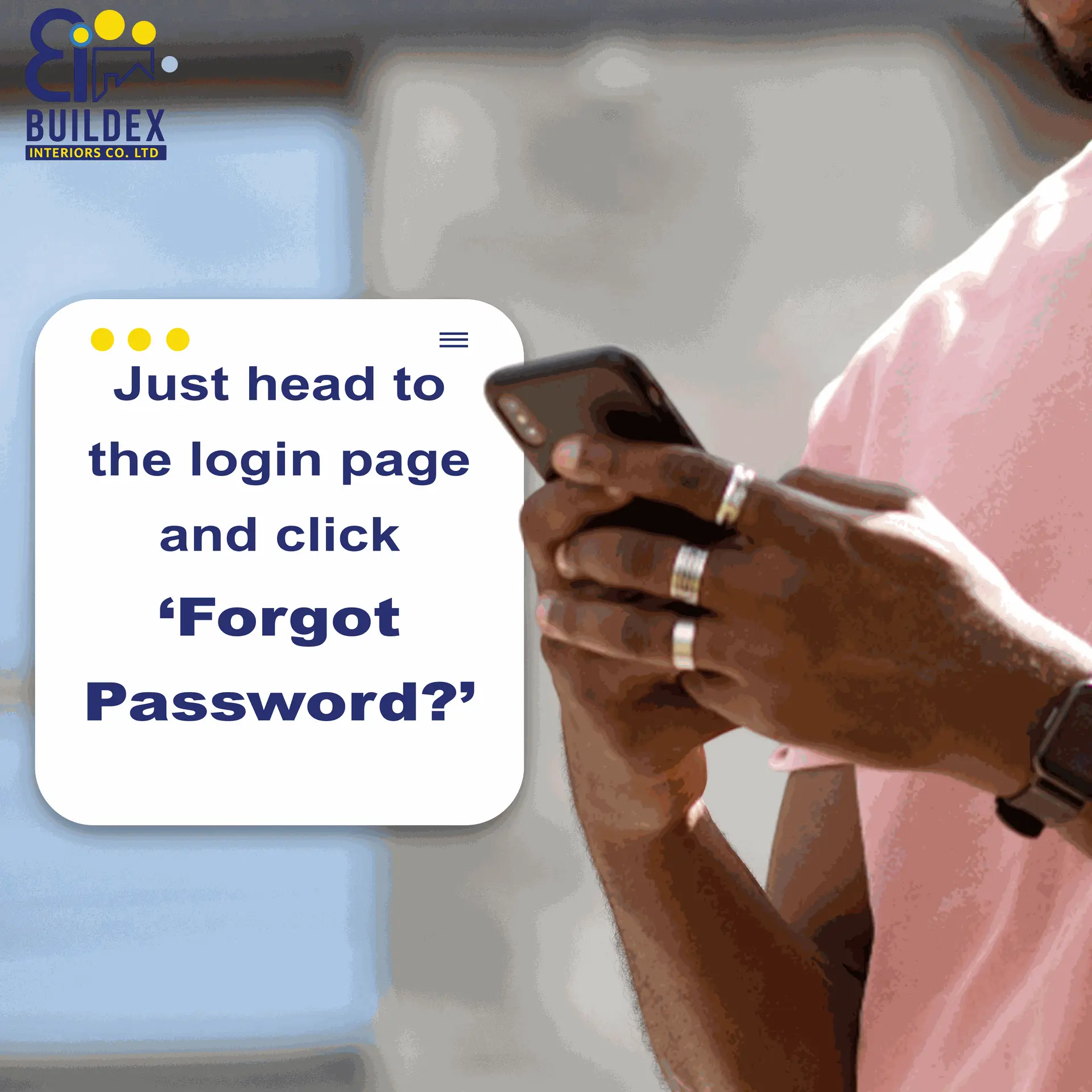
1. Go to the Login Page
Start at the login page and click on “Forgot Password?”
It’s the small link most people ignore… until today.
A single click will redirect you straight to the password reset page.
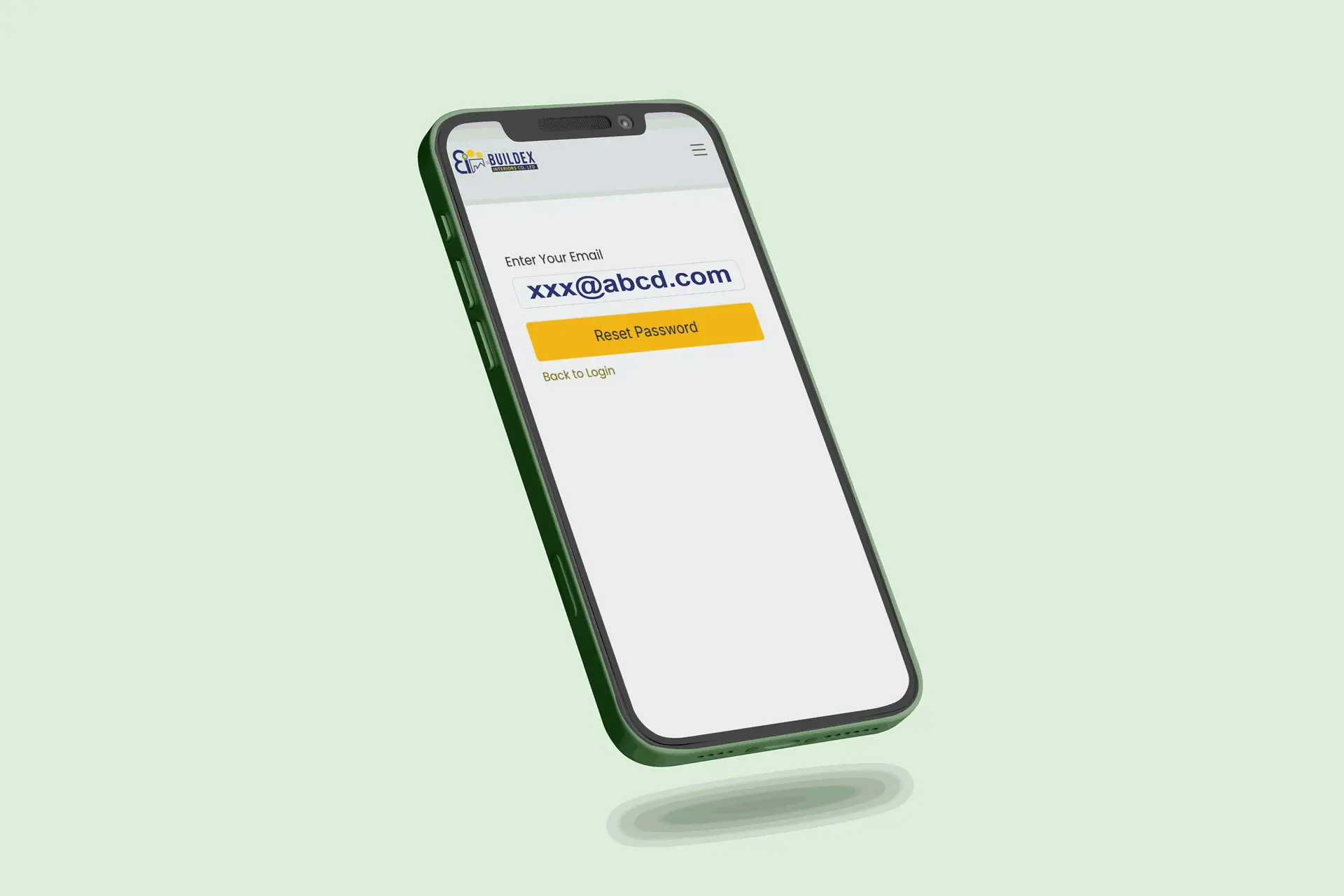
2. Enter Your Registered Email
You’ll be taken to a reset page.
Type in the email you used when creating your account.
If you try a different one, the system won’t recognize it — it’s picky like that.
3. Check Your Email for the Reset Code/Link
After clicking the reset button, a message will be sent to your email.
If you don’t see it in your inbox, take a quick look in the Spam or Promotions folder. Sometimes the messages hide there for no reason.
4. Reset Your Password
Open the email, use the link or code provided, and create your new password.
Make it something strong but easy for you to remember — and maybe avoid “123456”. It’s retired.
FEELING STUCK, CLICK HERE
Need More Help?
If anything refuses to work, just click “Contact Us”.
We’ll help you right away — no pressure, no blame, just a quick fix.